

Husky: The Git Tool That Stopped Me From Committing Broken Code

Bisal R.

Jan 20, 2026

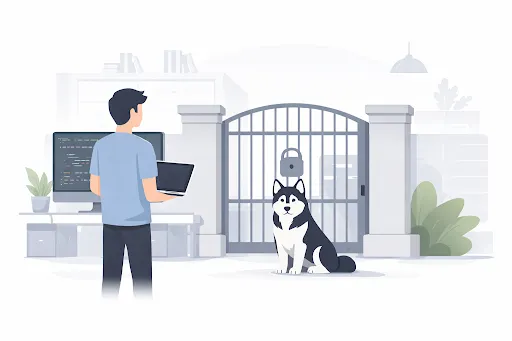
A few days ago, I tried to commit some changes — and the commit failed.
Not because of Git.
Not because of merge conflicts.
But because Husky stopped me.
At first, it was frustrating. The application was running fine, the UI loaded, and nothing seemed broken. But after digging a little deeper, I realized Husky had likely saved me from pushing broken code into the repository.
That moment completely changed how I think about Git hooks and local automation. This post explains what Husky does, what actually happens when you run git commit, and why I now believe Husky should be a default in most modern projects.
What Is Husky?
Husky is a tool that lets you run scripts automatically during Git actions such as:
- Committing code
- Pushing changes
- Merging branches
It works by integrating with Git hooks, which are scripts Git executes at specific points in its workflow.
In simple terms, Husky allows your project to enforce quality checks before Git allows an action to complete. Instead of hoping developers remember to run linting or type checks, Husky makes those checks unavoidable.
The Real Problem Husky Solves
In many team-based projects, the same issues tend to repeat:
- Someone forgets to run linting locally
- TypeScript errors get committed
- CI fails after code is pushed
- Other developers pull broken changes
These problems usually aren’t caused by bad developers. They’re caused by workflows that rely on memory and discipline instead of automation.
Husky solves this by turning best practices into guarantees. If a check matters, it runs automatically. No reminders required.
What Actually Happens When You Run git commit
Most developers assume git commit immediately creates a commit. When Husky is installed, that’s not quite true.
Here’s what really happens.
Step 1: Git Looks for Hooks
When you run git commit, Git checks whether the repository has hooks configured. If Husky is installed, you’ll usually see a .husky directory containing files like:
That file tells Git: “Before committing, run this script.”
Step 2: Husky Pauses the Commit
At this point, the commit is effectively paused. Husky runs the commands defined in the pre-commit hook.
In many projects, this looks like:
The commit will only proceed if everything inside that script succeeds.
Step 3: lint-staged Runs Checks on Staged Files
lint-staged is commonly used alongside Husky to ensure only staged files are checked. This keeps the process fast and focused.
Typical checks include:
- ESLint
- Prettier
- TypeScript type checking
An example configuration might look like this:
Only files added via
git addare validated, which keeps commits efficient even in large repositories.
Step 4: Automatic Safety Rollback
Before running any checks, lint-staged creates a temporary backup using Git stash.
If a command fails:
- All changes are restored
- The commit is canceled
- No work is lost
That’s why you’ll often see messages like:
Reverting to original state because of errors
It’s a built-in safety net.
Why Commits Fail Even When the App Runs Fine
This part was the most confusing at first.
The app was working. Pages loaded. There were no crashes. So why did Husky block the commit?
The answer was TypeScript.
Many projects run this during pre-commit:
tsc --noEmit
This tells TypeScript to perform a strict type check without generating output files. Development servers are often forgiving — they may ignore certain type issues or allow incremental compilation.
TypeScript during a commit is not forgiving.
Your application can appear to work while still containing invalid or unsafe types. Husky catches those issues before they ever leave your machine.
Why This Is Actually a Good Thing
Husky can feel strict at first. But over time, the benefits become obvious:
- Fewer broken commits
- Cleaner pull requests
- Fewer CI failures
- Less debugging after merges
Husky shifts problems left. Issues are caught earlier, when they’re cheaper and easier to fix.
Common Ways Teams Use Husky
In real-world projects, Husky is often used to:
- Block commits with TypeScript errors
- Enforce consistent formatting
- Prevent unused or dead code
-
Stop accidental
console.logstatements - Enforce commit message conventions
At that point, Husky becomes an automatic code reviewer — one that never forgets and never gets tired.
Can You Skip Husky?
Yes. You can bypass Husky with:
But this skips every safety check your team relies on.
This should be reserved for true emergencies and used deliberately. If skipping Husky becomes common, it stops being a safety net and turns into dead weight.
My Take After Using Husky
Husky doesn’t slow development. It prevents mistakes from spreading.
Once I understood how it worked, commit failures stopped feeling annoying and started feeling helpful. If your project uses TypeScript or involves multiple developers, Husky isn’t overkill.
It’s basic hygiene.
Final Thoughts
Good code quality isn’t about writing perfect code. It’s about catching mistakes as early as possible.
Husky helps you do exactly that — automatically, consistently, and before problems escape into shared branches or CI pipelines.
Once you get used to it, working without Husky feels like coding without tests.